Beginner's guide
Keep your favorite places within reach.
Use this visual guide to explore the map, save places, build Collections, and share the spots worth remembering.
Map
Explore the map
See saved places geographically, narrow what is shown, or begin your next action.
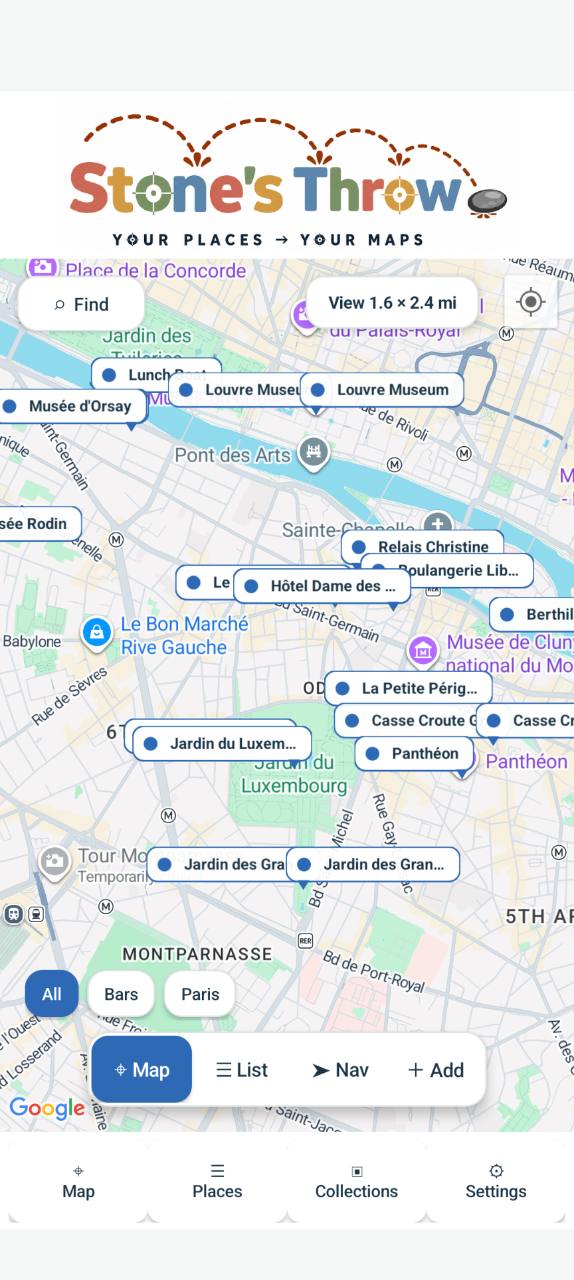
Tap a highlighted control to learn what it does.
- 1
Find
Search for a place or area on the map.
- 2
View
See the size of the map area currently in view.
- 3
Place markers
Saved places appear as labeled markers on the map.
- 4
Collection filters
All / Bars / Paris — Filter the Collections shown on the map.
- 5
Map
Return to the geographic map view.
- 6
List
List — View your places in a scrollable list.
- 7
Nav
Nav — Start navigation to a selected place(s).
- 8
Add
Open the add-place workflow.
- 9
Collections
Bottom navigation: Collections — Organize places into Collections.
List view
Browse the nearest places
Switch from the map to a simple, scrollable list of your saved places.
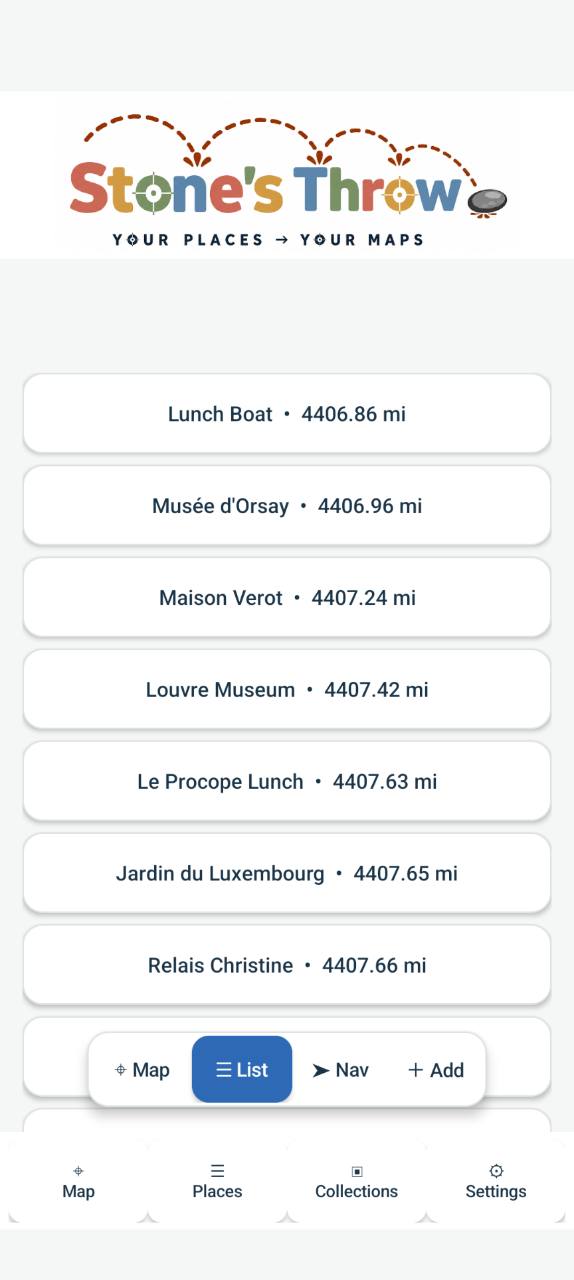
Tap a highlighted control to learn what it does.
- 1
Distance-sorted places
Saved places are displayed as a scrollable list ordered by their current distance.
- 2
Place cards
Each card shows a saved place name and its current distance.
- 3
Map
Switch back to the geographic map view.
- 4
List
Show saved places in list view.
- 5
Nav
Start choosing places for a route.
- 6
Add
Open the add-place workflow.
Route navigation
Build a route
Choose several stops in the order you want to visit them, then continue in Google Maps.
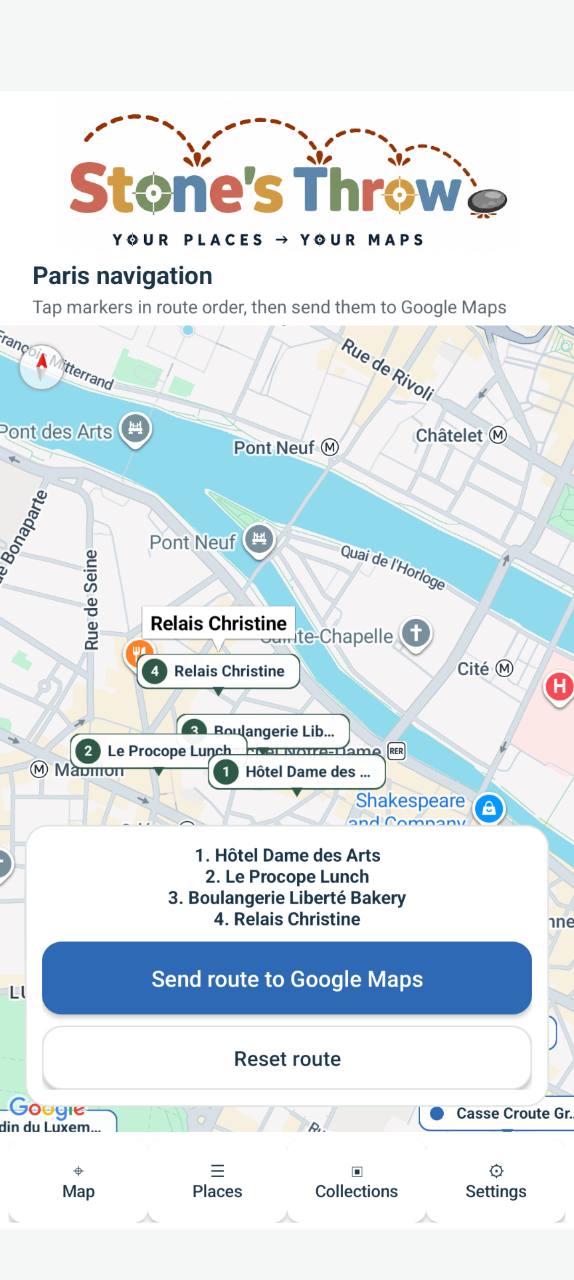
Tap a highlighted control to learn what it does.
- 1
Ordered map markers
Tap map markers in the desired visit order. Numbered markers show the route sequence.
- 2
Ordered route list
Review the selected stops and their visit order before sending the route.
- 3
Send route to Google Maps
Open the chosen stops in Google Maps.
- 4
Reset route
Clear every stop from the selected route and start again.
- 5
Bottom navigation
Move between Map, Places, Collections, and Settings without leaving the app.
Add a place
Add a place
Share directly from Google Maps for the quickest setup, or paste a shared link.
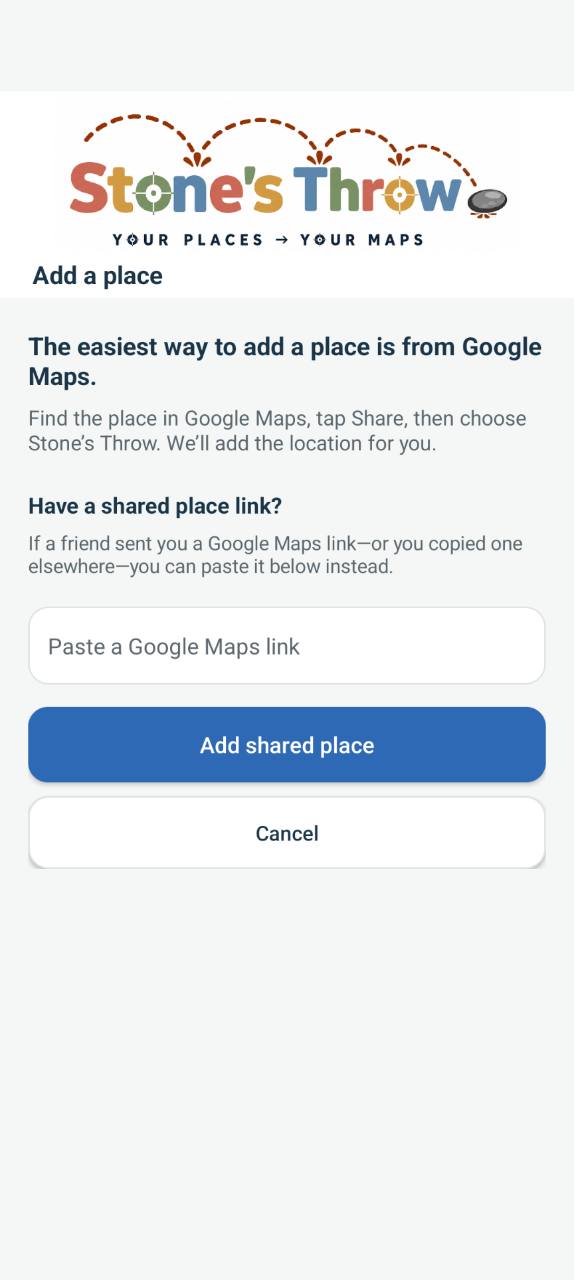
Tap a highlighted control to learn what it does.
- 1
Preferred workflow
Find the location in Google Maps, tap Share, then choose Stone’s Throw. The app fills in location information from the shared Google Maps place.
- 2
Shared link
As an alternative, paste a shared Google Maps link into this field.
- 3
Add shared place
Add the place from the pasted Google Maps link.
- 4
Cancel
Return without adding a place.
Google Maps sharing
Share from Google Maps
Send a place straight from Google Maps to Stone’s Throw—the quickest way to save it.
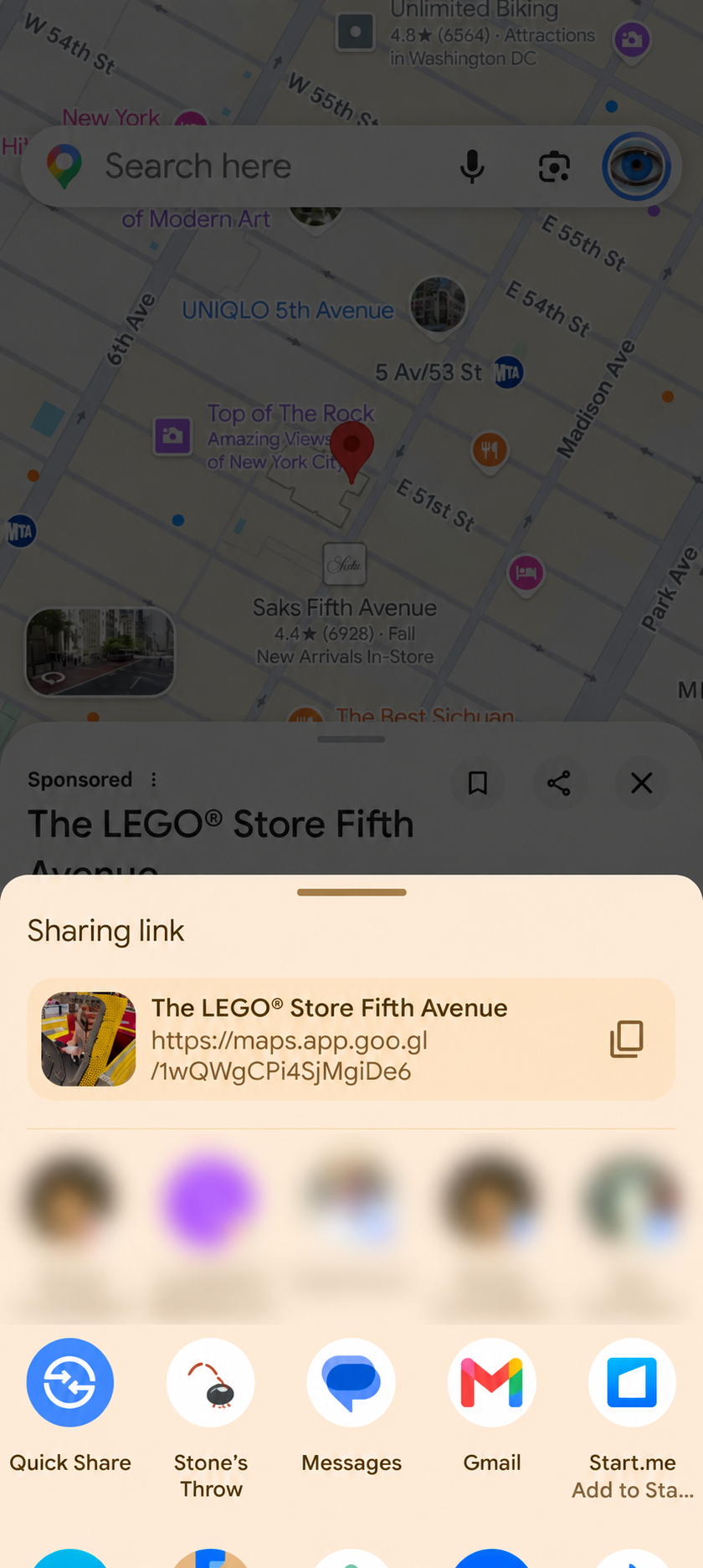
Tap a highlighted control to learn what it does.
- 1
Open the place
In Google Maps, open the place you want to save so its place panel is visible.
- 2
Share
Tap the Share icon in the open place panel.
- 3
Stone’s Throw
Choose Stone’s Throw from the app choices. The app fills in location information from the shared Google Maps place.
Places
Work with saved places
Search your saved locations, add another one, or open a place to manage it.
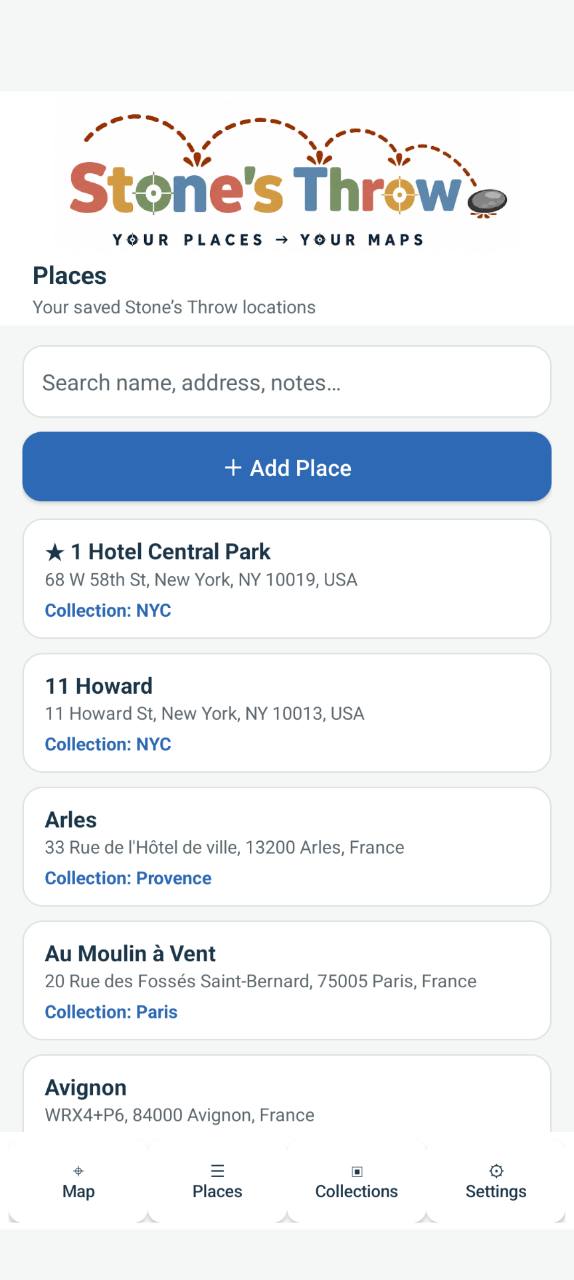
Tap a highlighted control to learn what it does.
- 1
Search
Search saved places by name, address, or notes.
- 2
Add Place
Open the workflow for saving a new place.
- 3
Place cards
Review a place name, address, and Collection together on each card.
- 4
Favorite star
A filled star identifies a place marked as a favorite.
- 5
Collection link
See which Collection contains the place.
- 6
Bottom navigation
Move between Map, Places, Collections, and Settings.
Edit Place
Update a saved place
Keep a place’s details organized and add the context that makes it useful later.
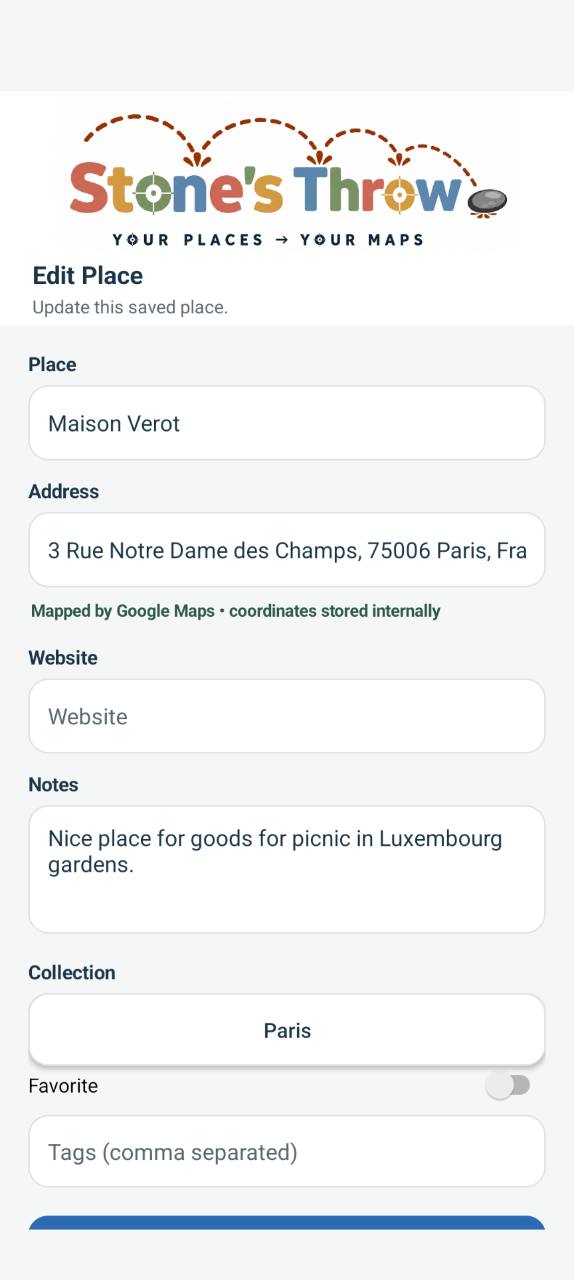
Tap a highlighted control to learn what it does.
- 1
Place
Edit the saved place name.
- 2
Address
Review the stored address. The note confirms Google Maps mapping and internally stored coordinates.
- 3
Website
Add or update the place’s website.
- 4
Notes
Save useful details or reminders about the place.
- 5
Collection
Choose the Collection used to organize this place.
- 6
Favorite
Turn Favorite on or off for this place.
- 7
Tags
Add comma-separated tags to make the place easier to find.
- 8
Save action
Use the blue action at the end of the form to save your edits. Exact button wording needs confirmation.
Collections
Organize with Collections
Group saved places by trip, city, theme, or any system that works for you.
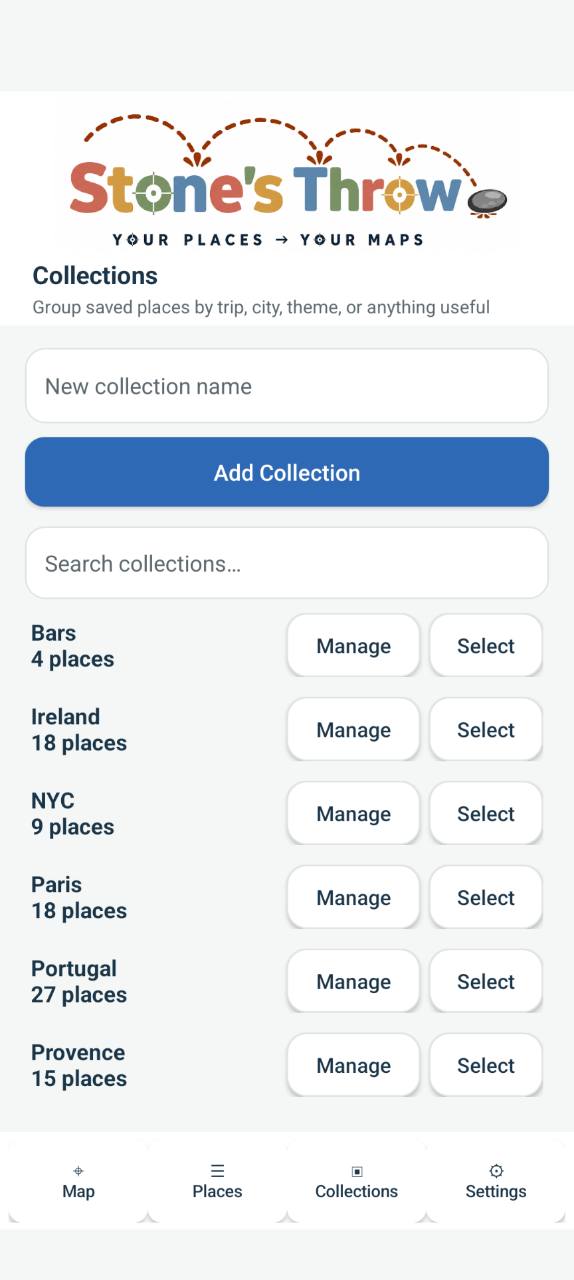
Tap a highlighted control to learn what it does.
- 1
New collection name
Enter a name for a new Collection.
- 2
Add Collection
Create the Collection using the name entered above.
- 3
Search
Filter the Collections list by name.
- 4
Place count
See how many saved places are in each Collection.
- 5
Manage
Open a Collection to rename, share, search, or remove places.
- 6
Select
Choose a Collection for viewing on the map.
- 7
Bottom navigation
Move between Map, Places, Collections, and Settings.
Collection management
Manage a Collection
Change the Collection itself or review and remove the places it contains.
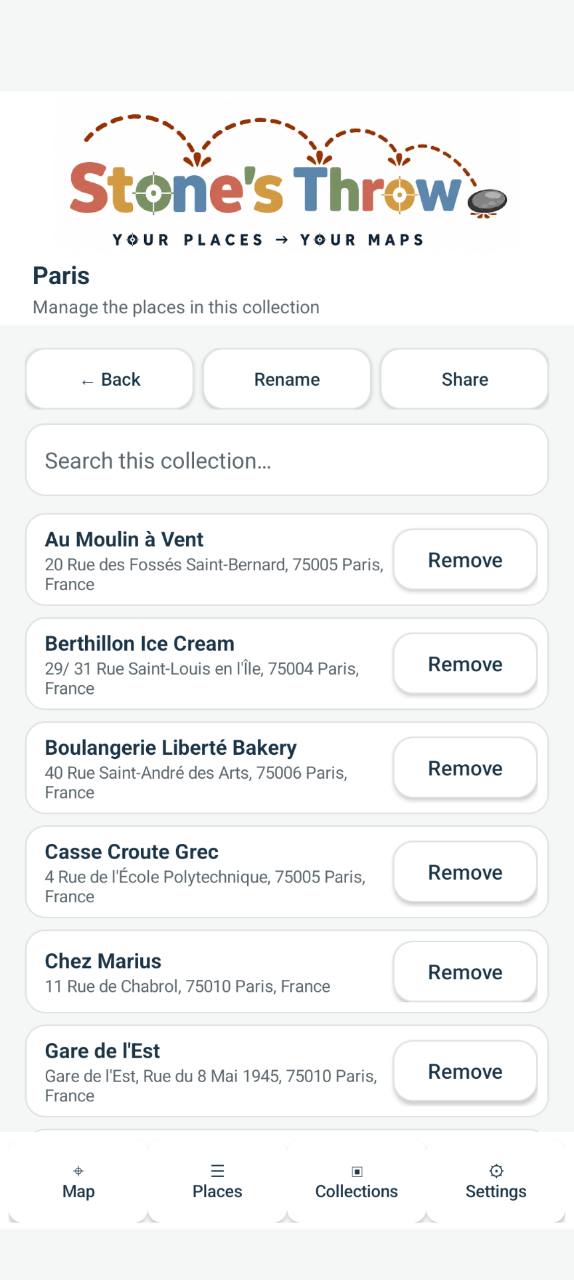
Tap a highlighted control to learn what it does.
- 1
Back
Return to the Collections screen.
- 2
Rename
Change the Collection’s name.
- 3
Share
Choose places to include in a shared copy of the Collection.
- 4
Search
Search within this Collection.
- 5
Place cards
Review the name and address of every place in the Collection.
- 6
Remove
Remove the corresponding place from this Collection.
Share Collection
Share selected places
Create a named copy and decide exactly which places it will include.
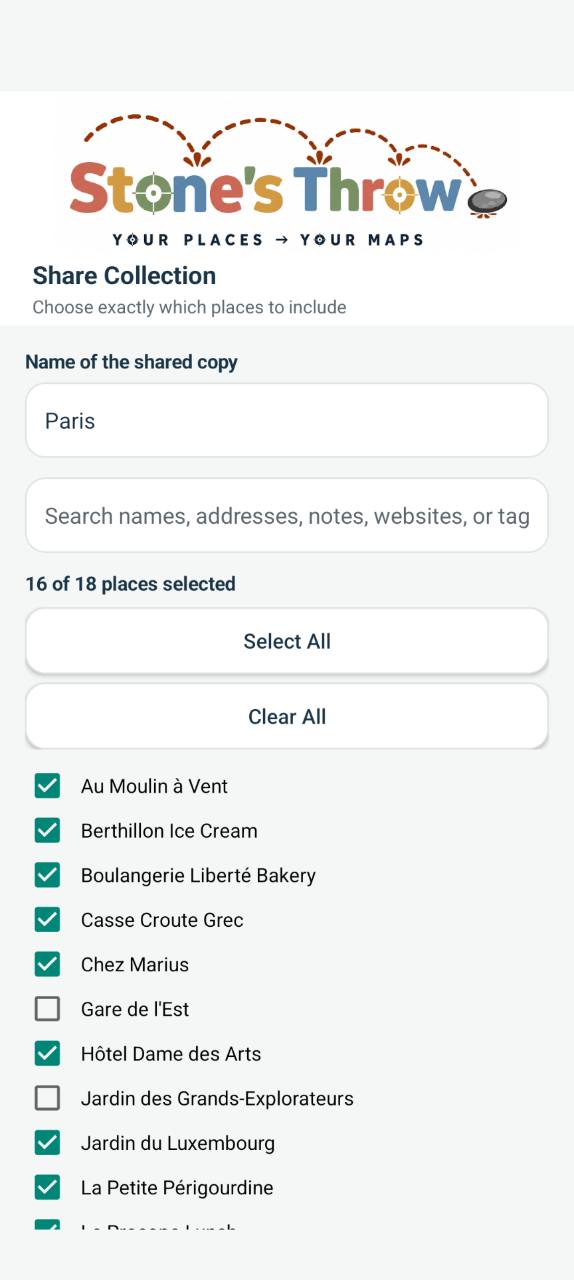
Tap a highlighted control to learn what it does.
- 1
Shared-copy name
Name the copy of the Collection that will be shared.
- 2
Search
Search places by the information shown in the field hint.
- 3
Selected count
See how many places are currently included out of the total available.
- 4
Select All
Include every place in the shared copy.
- 5
Clear All
Remove every place from the current selection.
- 6
Individual checkboxes
Include or exclude individual places one at a time.
- 7
Final share action
Use the final action after reviewing the selected places. Exact button wording and destination need confirmation.